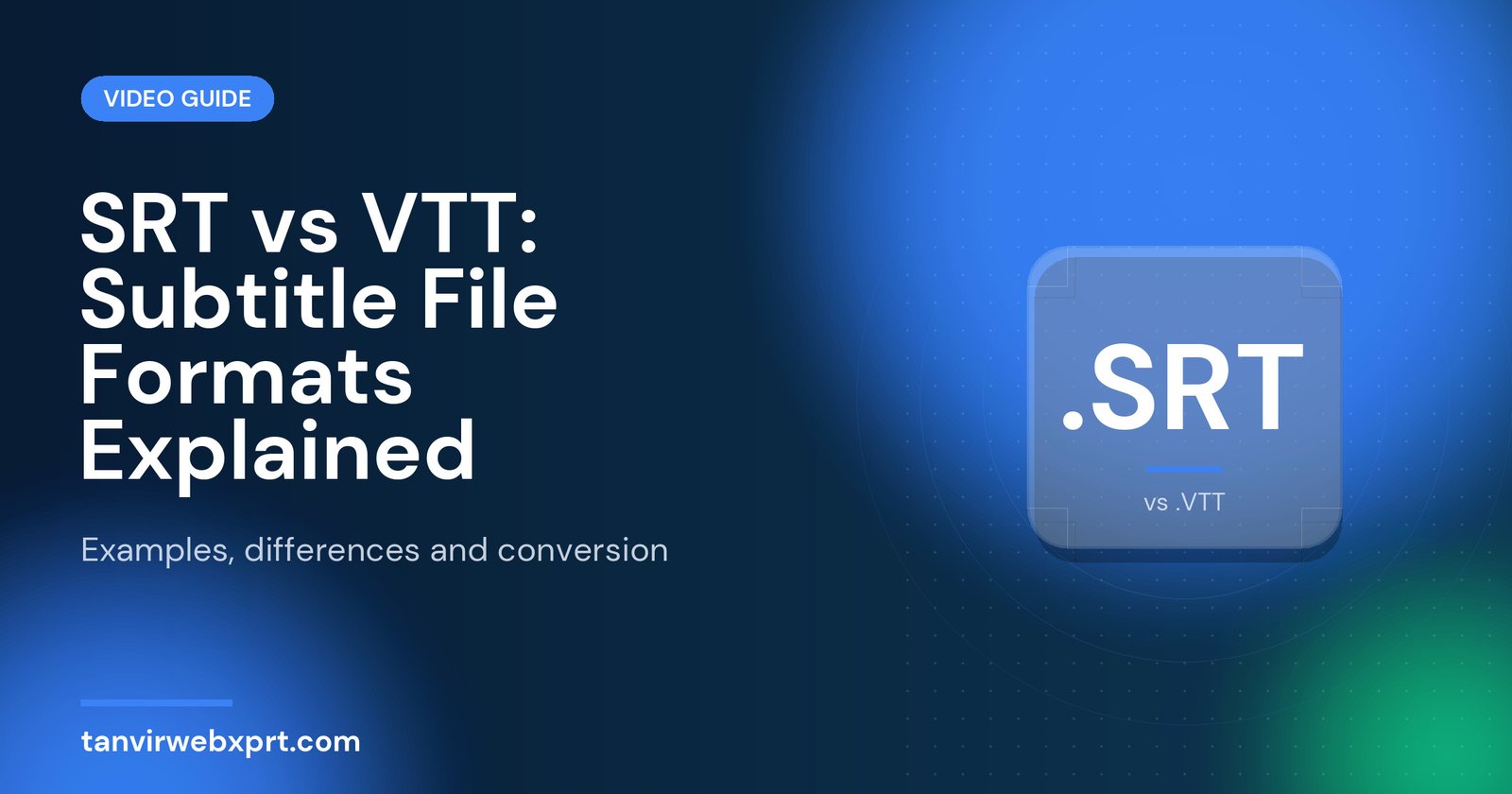
SRT and VTT are both plain-text subtitle formats that pair each caption with a start and end time. SRT (SubRip) is the simplest and most widely supported, used by YouTube, Facebook, video editors and media players. VTT (WebVTT) is the web standard for HTML5 video, starts with a “WEBVTT” line, uses a dot instead of a comma in timestamps, and supports extra features like positioning and basic styling. Use SRT for uploads to most platforms, and VTT for videos on your own website.
- Both formats are just text files you can open in any text editor.
- SRT: numbered blocks, comma before milliseconds, very widely supported.
- VTT: starts with WEBVTT, dot before milliseconds, made for web players.
- Converting between them is mostly a matter of small formatting changes.
- Get the text for your captions with the free Video to Text Converter.
The file that wouldn’t load
Imagine a web designer adding a training video to a client’s website. She has a perfectly good caption file from a video editor, uploads it, and nothing appears on the player. After an hour of confusion, she discovers the problem: the website’s HTML5 player expects VTT, and her file is SRT. A two-minute conversion fixes it.
Knowing the difference between these two formats saves a lot of time, and it’s simpler than it looks.
What an SRT file looks like
1
00:00:01,000 --> 00:00:04,000
Welcome to our cooking channel.

2
00:00:04,500 --> 00:00:08,000
Today we're making chicken biryani.- A number for each caption.
- Start and end time in hours:minutes:seconds,milliseconds (with a comma).
- The caption text, then a blank line.
What a VTT file looks like
WEBVTT

00:00:01.000 --> 00:00:04.000
Welcome to our cooking channel.

00:00:04.500 --> 00:00:08.000 line:90%
Today we're making chicken biryani.- The file starts with WEBVTT.
- Timestamps use a dot before milliseconds.
- Cue numbers are optional.
- Optional settings like position can follow the timestamp.
SRT vs VTT comparison
| SRT | VTT | |
|---|---|---|
| Full name | SubRip Subtitle | Web Video Text Tracks |
| First line | Caption number 1 | WEBVTT |
| Millisecond separator | Comma (00:00:01,000) | Dot (00:00:01.000) |
| Styling and position | Not officially supported | Supported (positioning, basic styling) |
| Best for | YouTube, Facebook, editors, media players | HTML5 video on websites, web players |
| YouTube support | Yes, basic SRT | Yes, with positioning and limited styling |
How to convert SRT to VTT by hand
- Open the SRT fileUse any plain text editor.
- Add WEBVTTType WEBVTT on the first line, then a blank line.
- Change commas to dots in timestampsOnly in the time lines, not in the caption text.
- Remove cue numbers (optional)VTT allows them, but they’re not needed.
- Save as .vtt in UTF-8Make sure the encoding is UTF-8 so special characters display correctly.
Adding VTT captions to a website video
For an HTML5 video, add a track element inside the video tag that points to your .vtt file, with the language and a label. Many WordPress video players and plugins also let you attach a VTT file from the media settings. Captions on your own site make videos accessible and help visitors who watch with the sound off.
Where the text comes from
Both formats start with an accurate transcript. Create it privately with the free Video to Text Converter. For YouTube, you can skip manual timing completely by pasting the transcript into YouTube’s auto-sync, as explained in how to add subtitles to YouTube videos.
Sources
- W3C: WebVTT specification
- YouTube Help: Supported subtitle and closed caption files
- MDN Web Docs: WebVTT
Frequently asked questions
What is the difference between SRT and VTT?
Both are text subtitle formats. VTT starts with “WEBVTT”, uses a dot instead of a comma before milliseconds and supports positioning and basic styling. SRT is simpler and more widely supported.
Which subtitle format should I use for YouTube?
Both work. SRT is the most common choice. You can also skip timing entirely by pasting a transcript into YouTube’s auto-sync.
Which format do HTML5 website videos use?
HTML5 video uses WebVTT (.vtt) through the track element.
How do I convert SRT to VTT?
Add WEBVTT as the first line, change the commas in timestamps to dots, and save the file as .vtt in UTF-8 encoding.
Turn video and audio into text privately on your own device. No upload, no sign-up, files up to 1 GB.
Guides for this tool
 Guide · 3 min readHow to Transcribe a Video to Text for Free (Private, Step by Step)
 Guide · 3 min readHow to Turn Your Videos into Blog Posts with Transcripts (SEO Guide)
 Guide · 3 min readHow to Add Accurate Subtitles to YouTube Videos (Using a Transcript)
 Guide · 3 min readHow to Transcribe Interviews for Research and Journalism
Want a tool, website or app like this for your business?
Every free tool on this site is designed and coded by Tanvir H, a Bangladesh-based WordPress and Elementor web designer with 7+ years of experience and 650+ projects for clients worldwide. Fast, mobile-first, search-optimised websites that turn visitors into customers.
- 650+ projects
- 7+ years
- 4.9★ rating
- Govt. registered freelancer