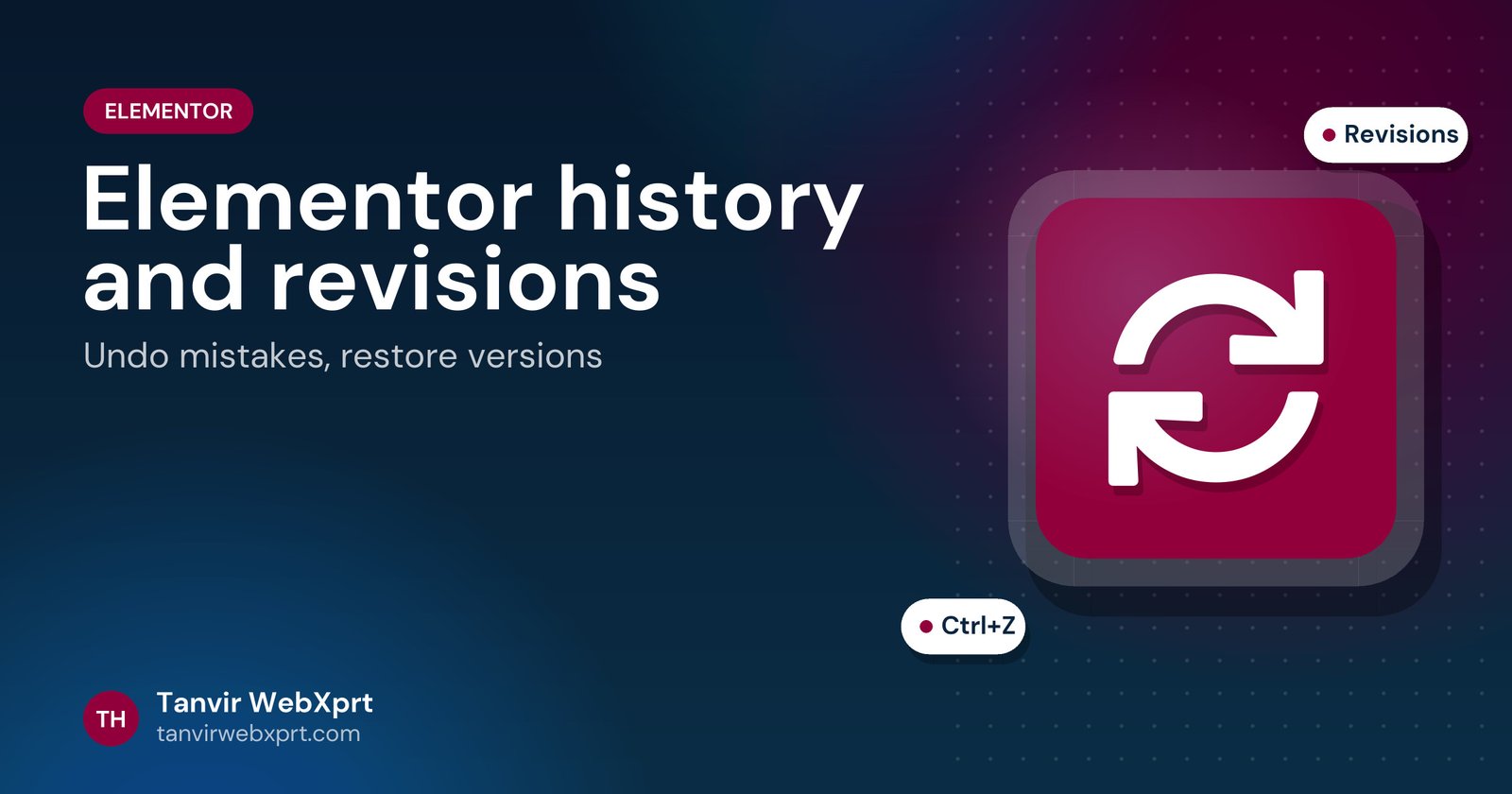
Elementor keeps two safety nets: History (undo actions in the current session, Ctrl+Z or the History panel’s Actions tab) and Revisions (saved versions of the page over time, in the History panel’s Revisions tab). To restore an older version, open the Revisions tab, preview a revision, click Apply, then Update. WordPress revisions must be enabled for this to work.
- Ctrl+Z undoes recent actions.
- Revisions restore earlier saved versions.
- Preview before applying.
- Click Update after applying.
- Keep a sensible revision limit, not zero.
History vs Revisions
| Tool | Scope | Use when |
|---|---|---|
| History (Actions) | Current editing session | You just deleted something |
| Revisions | Saved versions over time | Yesterday’s version was better |
| Site backup | Whole site | Bigger problems |
Live 1-to-1 WordPress and Elementor lessons on your own site, from $40. Every lesson recorded. Beginners welcome.
Why can’t I see any revisions?
Picture a staff member who deletes a section, saves, and then cannot find any revisions. Often a performance plugin or wp-config.php setting disabled WordPress revisions entirely. Keep revisions on with a limit (for example 10 per page) instead of zero. Then mistakes are a two-click fix. More safety habits in Elementor training for teams.
Want to learn Elementor faster with a tutor?
I teach WordPress and Elementor 1-to-1 over Zoom or Google Meet, on your own website, at your pace. Lessons start at $40, every lesson is recorded so you can rewatch it, and you get a short checklist afterwards. Beginners, business owners, students and freelancers are all welcome. See lessons and prices or book a free intro call.
Frequently asked questions
How do I undo changes in Elementor?
Press Ctrl+Z or use the History panel Actions tab for the current session.
How do I restore an older version in Elementor?
Open History, Revisions, preview a revision, click Apply, then Update.
Why are there no revisions in Elementor?
WordPress revisions may be disabled by a plugin or wp-config.php setting.
How many revisions should I keep?
A limit such as 10 per page balances safety and database size.
Sources
Live 1-to-1 WordPress and Elementor lessons on your own site, from $40. Every lesson recorded. Beginners welcome.
More WordPress guides
 Guide, 3 min readWordPress and Elementor Tutoring: Your Questions Answered
 Guide, 3 min readWordPress Multisite Explained: Who Needs It (and Who Does Not)
 Guide, 3 min readWordPress Comments and Spam: Settings That Keep Your Site Clean
 Guide, 3 min readHow to Move WordPress to HTTPS (SSL) and Fix Mixed Content
Rather have an expert run your WordPress site?
Tanvir H is a Bangladesh-based WordPress and Elementor web designer with 7+ years of experience, 650+ projects and a 4.9 client rating. New websites, redesigns, fixes, speed, security and SEO, handled by one expert who explains everything in plain English and works with clients worldwide.