SmartLife Desk · Everyday guides hub
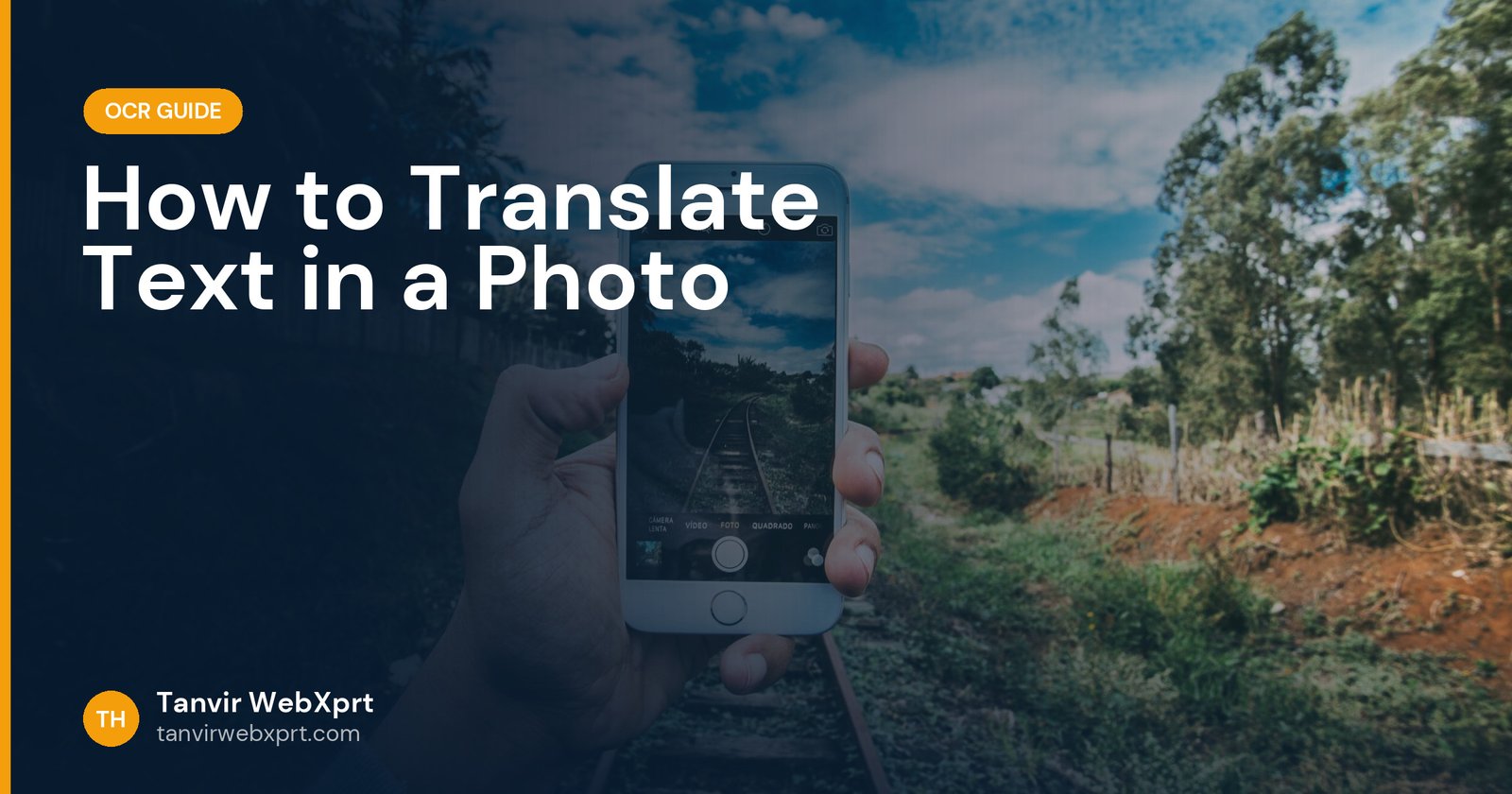
To translate text in a photo, use a camera translator: Google Lens or the Google Translate app (Camera mode) on Android and iPhone, or Live Text on iPhone. Point your camera at a sign, menu, label or document, or open a saved photo, and the translation appears on top of the original. For longer documents, extract the text with OCR first, then paste it into a translator, which usually gives a cleaner, more complete translation you can edit.
- Camera translation is instant and great for signs, menus and labels.
- For documents, OCR first, then translate the text for better accuracy.
- Google Translate supports Bangla, English and many more languages.
- Machine translation is a helper, not a certified translation.
- Extract English text first with the free Image to Text tool.
A medicine box in a language you cannot read
Picture a family member returning from abroad with a box of medicine where everything, including the dosage, is written in Korean. Before Google Lens, this meant finding someone who could read it. Now you point your phone at the box and the instructions appear in English or Bangla in a few seconds.
That is the magic of camera translation. It is also why it is worth knowing its limits: for anything important like medicine, contracts or official letters, double-check with a professional or the pharmacist.
Method 1: Instant camera translation
| App | How |
|---|---|
| Google Translate (Android, iPhone) | Tap Camera, choose the languages, point at the text. Use Scan or Import to translate a photo. |
| Google Lens | Open Lens, point or select a photo, tap Translate. |
| iPhone Live Text | Open a photo, touch and hold the text, choose Translate (supported languages vary). |
Method 2: OCR, then translate (better for documents)
- Photograph the documentFlat, straight, good light, one page at a time.
- Extract the textFor English, use the free Image to Text tool. For Bangla and other scripts, use Google Lens or Drive (see Bangla OCR).
- Fix OCR errorsCorrect obvious mistakes before translating, because errors multiply in translation.
- TranslatePaste the text into Google Translate or another translator.
- ReviewRead the translation for meaning. Ask a fluent speaker to check anything important.
Tips for better translations
- Translate full sentences rather than single words for context.
- Check names, numbers, dates and units; translators sometimes change formats.
- Download offline language packs before travelling.
- For menus and signs, the camera mode is enough; for letters, use the OCR method.
Learning English with photos
Translating signs, labels and articles you see every day is a great way to pick up vocabulary. To practise speaking the words you learn, try the free Lumi AI English Robot or join a live room on ChatterNest.
Related guides
Read how to copy text from a screenshot and 10 OCR accuracy tips.
Sources
Frequently asked questions
How do I translate text in a photo?
Use the Camera feature in Google Translate or Google Lens’s Translate option. Point at the text or open a saved photo.
Can I translate a photo from Bangla to English?
Yes. Google Translate and Google Lens support Bangla, both for camera translation and for text you copy from images.
What is the best way to translate a whole document from photos?
Extract the text with OCR, fix any errors, then paste it into a translator and review the result.
Is machine translation accurate enough for official documents?
No. Official, legal and medical documents usually need certified human translation.
Can I translate photos offline?
Yes, if you download offline language packs in Google Translate beforehand.
Extract text from photos, screenshots and scans and download it as Word or text.
Guides for this tool
 Guide · 3 min readOCR Accuracy: 10 Tips to Get Clean Text from Photos and Scans
 Guide · 3 min readHow to Convert a Picture to Text on Phone and PC (Free OCR Guide)
 Guide · 3 min readHow to Copy Text From a Screenshot (Phone, PC and Online)
 Guide · 3 min readBangla OCR: How to Convert Bangla Text in Images to Editable Text
Want a tool, website or app like this for your business?
Every free tool on this site is designed and coded by Tanvir H, a Bangladesh-based WordPress and Elementor web designer with 7+ years of experience and 650+ projects for clients worldwide. Fast, mobile-first, search-optimised websites that turn visitors into customers.
- 650+ projects
- 7+ years
- 4.9★ rating
- Govt. registered freelancer